GPT Image 2.5 UI mockup prompts
Verified against OpenAI documentation on 2026-09-09
Interface mockups fail in predictable ways: the wrong device frame, invented placeholder text, and a type hierarchy that flattens into one grey blur. These GPT Image 2.5 UI mockup prompts fix all three by naming the viewport, writing real product copy in quotation marks, and describing the size relationship between heading, label and body. Swap the product and keep the structure.
What makes these work
- 01
Name the device and the viewport, such as a 1440 by 900 desktop browser window or a 6.1 inch phone at 393 points wide. Without it you get an ambiguous rectangle that fits no real screen.
- 02
State how many screens are in the frame and how they are arranged. Three phone screens side by side with even gaps is a different image from one screen centred, and the model will not guess your intent.
- 03
Write real sounding copy instead of lorem ipsum. Quote a few short strings such as the primary button reads "Start free trial", and let longer paragraphs render as grey text blocks so no attention is wasted on unreadable filler.
- 04
Give the type hierarchy in words. Say the page title is large and semibold, section labels are small uppercase in muted grey, and body text is regular at half the title size. That relationship is what makes a mockup look designed.
- 05
Name the spacing system and the corner radius once, then say it applies everywhere. Consistent eight point spacing and a single radius value do more for realism than any amount of styling adjectives.
8 prompts
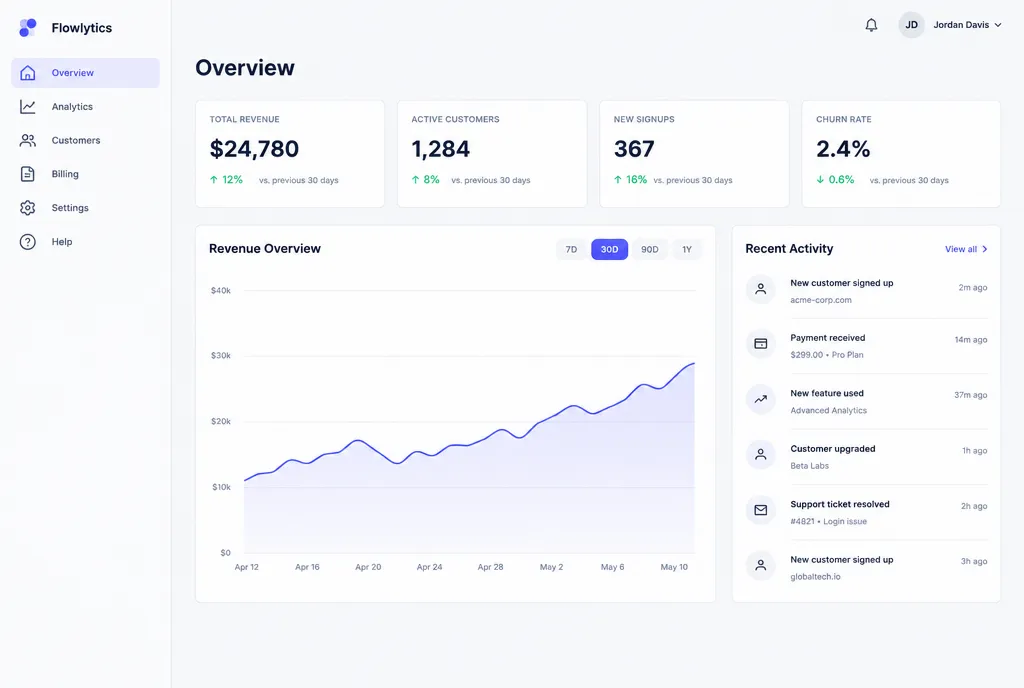
Analytics dashboard on desktop
flare · xhigh · 1536x1024 · 31s
Clean SaaS analytics dashboard shown in a 1440 by 900 desktop browser window, light theme, flat design with no skeuomorphic effects. A 240 pixel left sidebar holds a small logo mark and six nav items with line icons. The main area uses a twelve column grid with 24 pixel gutters. Across the top sit four stat cards with a small uppercase grey label above a large semibold number. Below them a wide line chart spans eight columns with a soft area fill and a light horizontal gridline set. A four column panel on the right lists recent activity rows. The page title reads "Overview". Neutral greys, one indigo accent, one radius of 8 pixels everywhere.
Giving the sidebar a pixel width and the grid a gutter value anchors the whole layout to something measurable. One accent colour against neutral greys is what stops a dashboard turning into a rainbow.
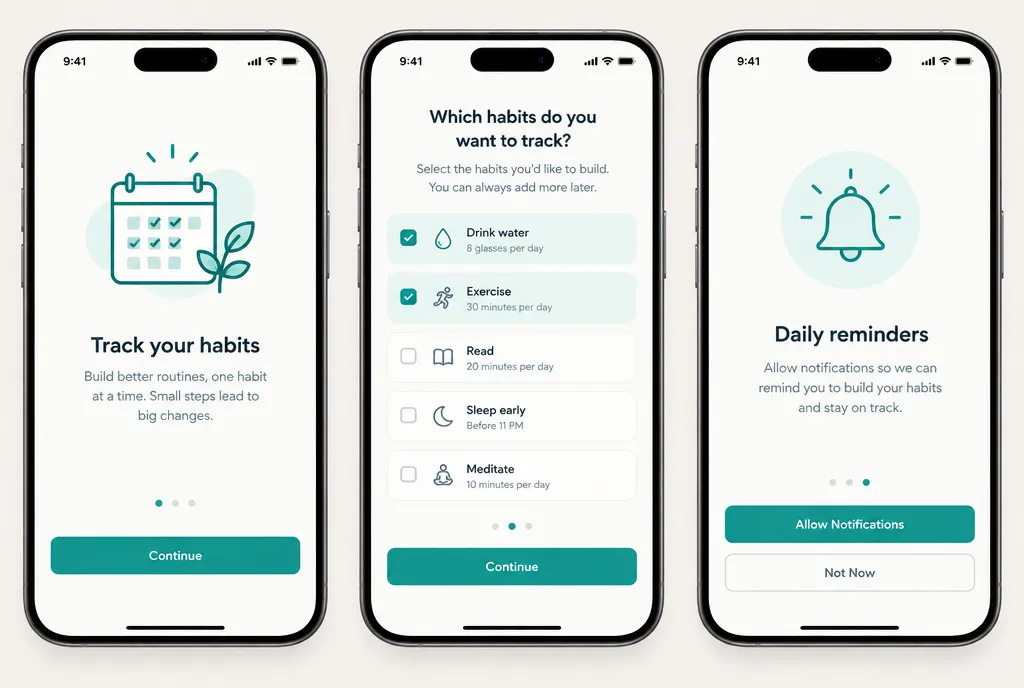
Three screen onboarding flow
flare · high · 1536x1024 · 27s
Three iPhone screens shown side by side against a soft neutral background, evenly spaced, each in a thin device frame at 393 points wide. All three share the same light theme, generous vertical padding and a single teal accent. Screen one shows a centred line illustration above a heading that reads "Track your habits" with two lines of grey body text and a full width primary button reading "Continue". Screen two shows a list of five selectable habit rows with checkboxes, two selected. Screen three shows a permission request card with a bell icon, a heading reading "Daily reminders" and two stacked buttons. A three dot progress indicator sits above the button on every screen.
Onboarding reads as a flow only when the three screens share one visual system, so the shared traits are stated once before the per screen detail. The progress dots tie the sequence together.
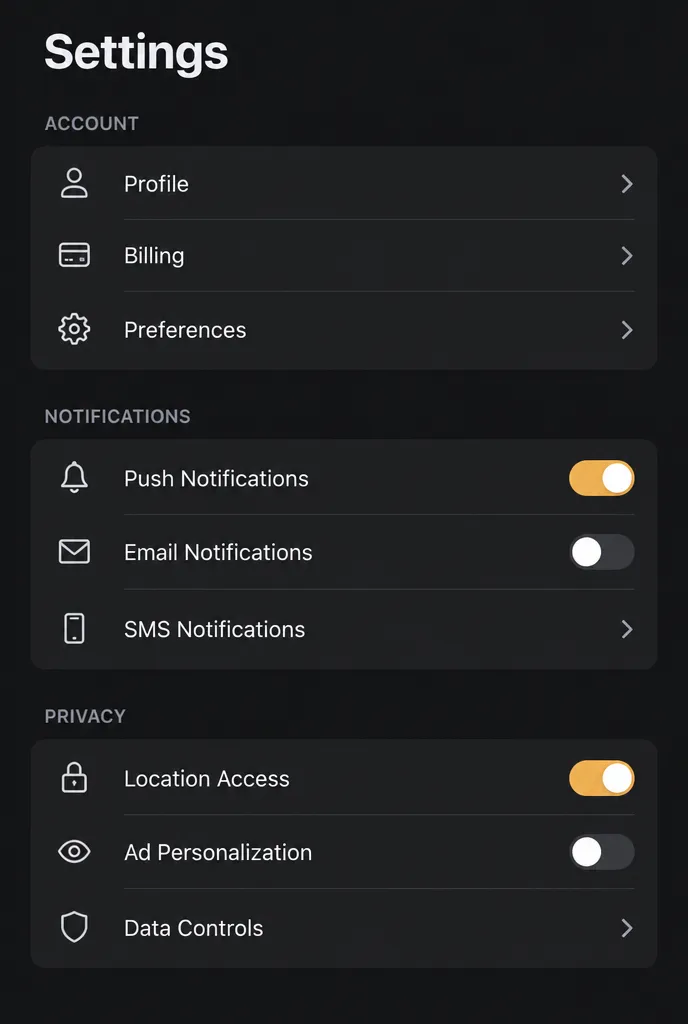
Dark mode settings screen
sunburst · high · 1024x1536 · 28s
Mobile settings screen in dark mode, 393 points wide, shown full bleed without a device frame. Background is a near black charcoal with cards one step lighter. A large semibold title at the top reads "Settings". Below it three grouped sections, each preceded by a small uppercase muted label reading "Account", "Notifications" and "Privacy". Each group is a rounded card containing rows with a leading line icon, a label on the left and either a chevron or a toggle on the right. Two toggles are on and show the accent colour, a warm amber. Row dividers are hairline and inset to align with the label text. Consistent 16 point horizontal padding and 12 pixel corner radius throughout.
Settings screens are mostly text, so this goes to sunburst where the section labels and row names have a better chance of rendering. Inset dividers are a small detail that separates real iOS patterns from generic lists.
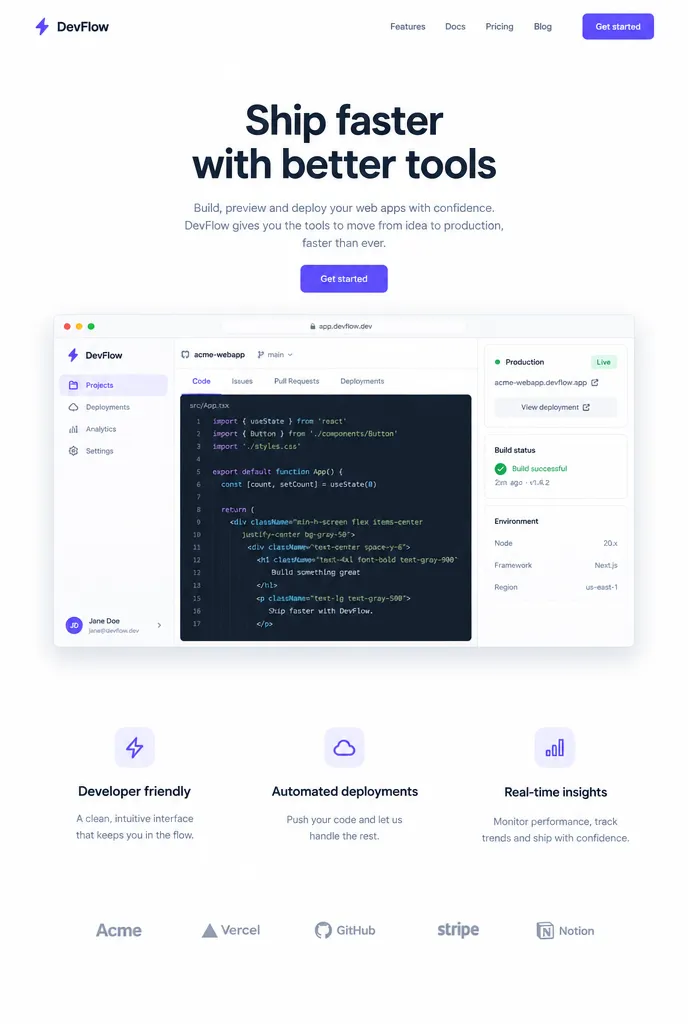
SaaS landing page hero
flare · xhigh · 1024x1536 · 28s
Full desktop landing page for a developer tool, captured as a tall scroll view at 1440 pixels wide, light theme. A slim top nav holds a wordmark on the left and four text links plus one filled button on the right. The hero centres a large headline reading "Ship faster" over two lines of muted supporting text and a single primary button reading "Get started". Below the hero sits a wide product screenshot in a browser frame with a soft shadow. Under that a three column feature row, each column an icon, a short bold heading and two lines of grey body text. A logo strip of five muted grey shapes follows. Generous whitespace, one violet accent, 8 pixel radius.
Asking for a tall scroll view rather than a viewport crop gets the whole page in one image. Describing the logo strip as muted grey shapes avoids the model inventing recognisable company marks.
Transit app map screen
flare · high · 1024x1536 · 31s
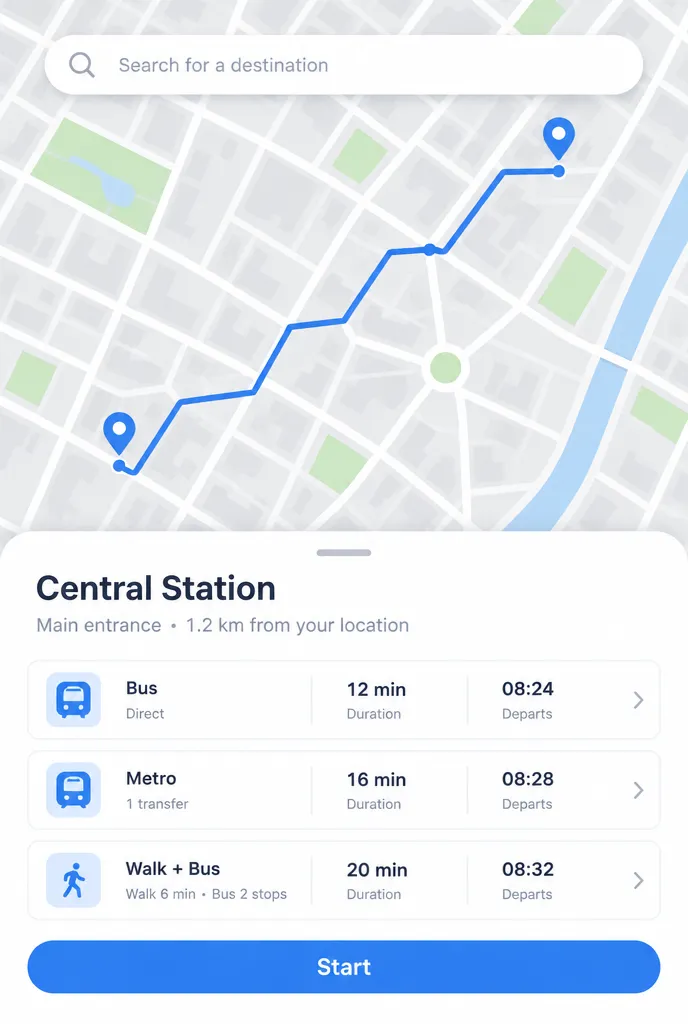
Mobile transit app screen, 393 points wide, showing a simplified city map filling the upper two thirds. The map is flat and muted with pale grey blocks, thin white roads and a single blue route line running from a start pin to an end pin. A search field floats near the top with a rounded shape and a soft shadow. A bottom sheet covers the lower third with a grab handle, a bold heading reading "Central Station", a grey subtitle line, and three route option rows each showing a mode icon, a duration and a departure time. The primary button at the bottom reads "Start". Light theme, one blue accent, no photographic map imagery.
Saying the map is flat and muted keeps it as a background layer instead of competing with the sheet. A bottom sheet needs its grab handle named or the model draws a full screen panel.
Empty state screen
flare · medium · 1024x1024 · 19s
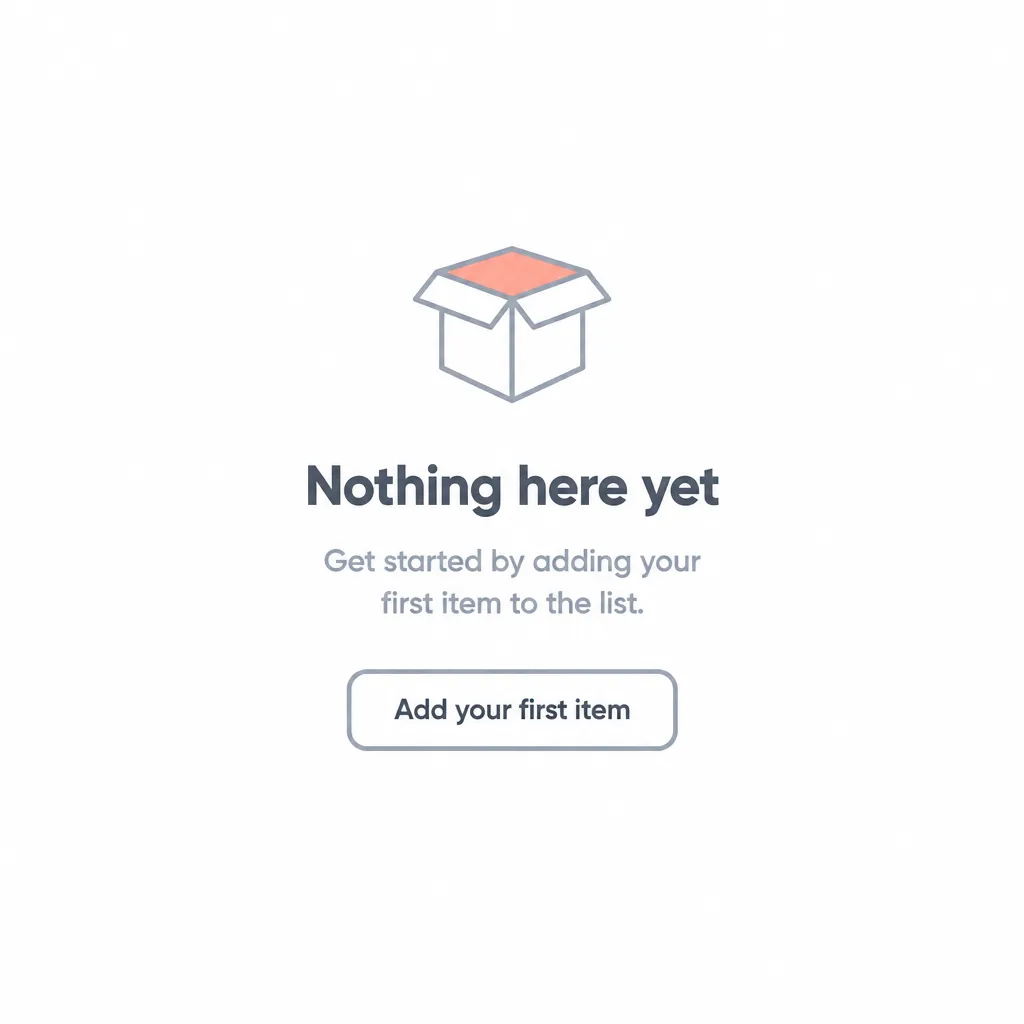
Single app screen showing an empty state, light theme, 393 points wide, rendered without a device frame on a plain white ground. The composition is vertically centred with heavy whitespace above and below. A simple two colour line illustration of an open box sits at the top, drawn with a consistent two pixel stroke and one soft coral fill. Below it a semibold heading reads "Nothing here yet". Under that two lines of muted grey body text at roughly half the heading size. A single outlined button beneath reads "Add your first item". Nothing else appears on the screen. Neutral greys, one coral accent, no shadows, no gradients.
Empty states are an exercise in restraint, so the prompt says nothing else appears rather than trusting the model to leave space. Naming the stroke width keeps the illustration from drifting into a detailed drawing.
Two screen checkout flow
sunburst · high · 1536x1024 · 28s
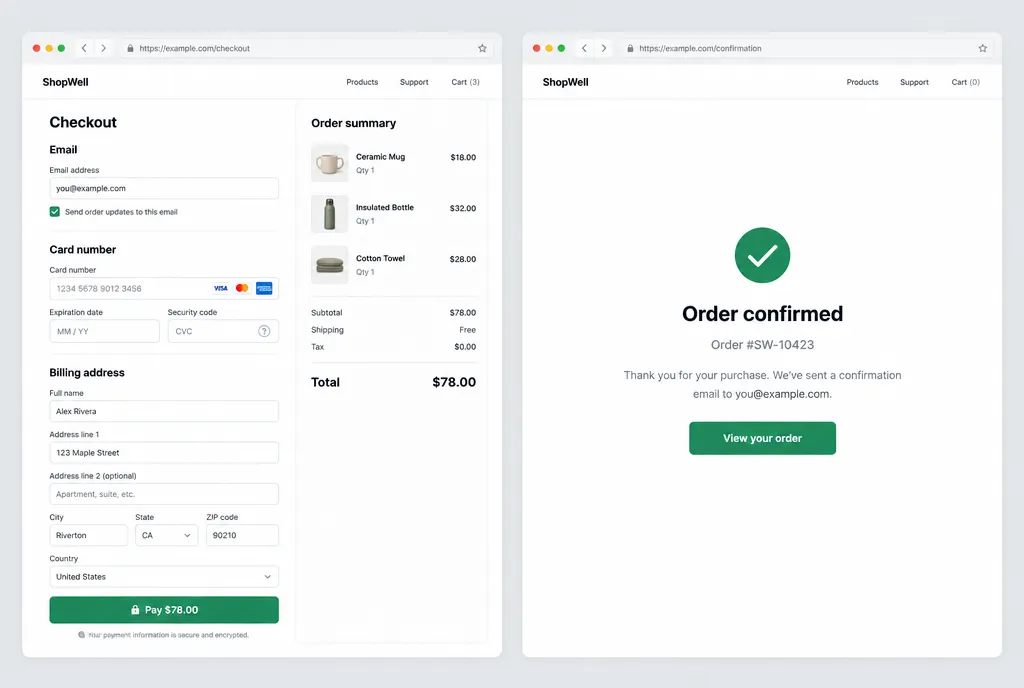
Two desktop checkout screens side by side, each 1280 pixels wide in a plain browser frame, light theme, on a soft grey background. The left screen shows a two column checkout: a form column with grouped fields labelled "Email", "Card number" and "Billing address", and a narrower order summary column listing three line items, a subtotal row and a bold total row. The right screen shows the confirmation state with a large check mark, a heading reading "Order confirmed" and a muted order number line below. Both screens share the same 8 point spacing, 6 pixel radius, one green accent and the same type scale. No promotional banners.
Form field labels are short quoted strings, which is exactly the shape of text that renders most reliably. Showing the before and after state in one frame makes the mockup usable in a spec document.
Desktop pricing table
sunburst · high · 1536x1024 · 29s
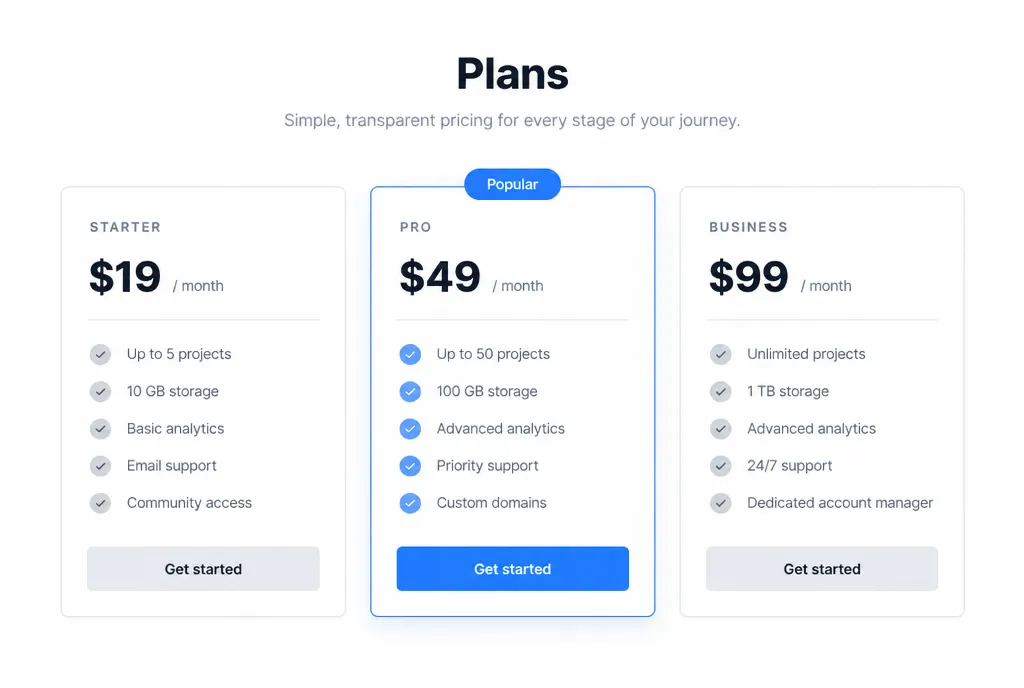
Desktop pricing section at 1440 pixels wide, light theme, centred on a white page with generous margins. A centred heading reads "Plans" with one muted line of supporting text beneath. Below sit three equal width plan cards with 24 pixel gaps. Each card has a small uppercase plan name at the top, a large numeral row, a divider, then five feature rows each with a small check icon and a short grey label. The middle card is visually raised with a subtle shadow, a thin accent border and a small pill label above it reading "Popular". Each card ends with a full width button. Use one blue accent, neutral greys and a single 10 pixel radius throughout.
The prompt asks for a large numeral row without dictating figures so you can drop real ones in later. Raising the middle card with a border and a pill is the standard pattern that makes a pricing table read correctly.
Frequently asked questions
How do I avoid lorem ipsum in generated screens?
Write the strings you care about yourself and put them in quotation marks, such as the button reads "Start free trial". For longer paragraphs, ask for grey text blocks or muted body lines instead of readable sentences. That way the model spends its effort on the few words a reviewer will actually read and does not fill the screen with garbled filler.
Which model handles interface text better?
Use gpt-image-2.5-sunburst for screens dominated by labels, form fields and nav items, since it is the model built for exact text. Use gpt-image-2.5-flare, the fast default, for map screens, illustrations and empty states where the layout matters more than the words. Both benefit from short quoted strings rather than long sentences.
Why do my mockups look generic?
Generic usually means unspecified. Fix it by naming the viewport width, the sidebar width, the gutter size, one corner radius and a single accent colour, then stating that those values apply everywhere. Consistency across small numbers is what separates a designed screen from a collection of rounded rectangles that happen to sit near each other.
Can I show several screens in one image?
Yes, and it works better when you say how many and how they sit. Three phone screens side by side with even gaps, or two desktop screens showing a before and after state, both work well. State the traits all screens share once at the start, then describe each screen briefly, so the set reads as one product.
How do I iterate on a screen I already like?
Keep the image and ask for one change at a time. GPT Image 2.5 handles multi-turn editing more reliably than the previous generation, so requests like switch the accent to amber or move the summary column to the left tend to preserve the rest. Sunburst is the better choice for those follow up edits.